
Before you start
- You can save posts that have finished analysis in the current workspace.
- Viewer or higher can view Collections. Creating and editing Collections, and adding or removing posts, requires Editor or Admin permission.
- A workspace can have up to 20 Collections, with up to 1,000 posts each.
- Star (★) a Collection you use often to add it to Favorites in the sidebar.
Save posts
- Select posts in the Posts tab of Query explorer or a Query’s detail view.
- Select Save to collection in the selection bar.
- Choose the Collection, then open it to confirm the posts are there.
Add or remove posts across several Collections
When you open the Collection list, each Collection shows whether your selected posts are already in it:
The list and your post selection stay open after each change, so you can update several Collections in a row.
Use a Collection
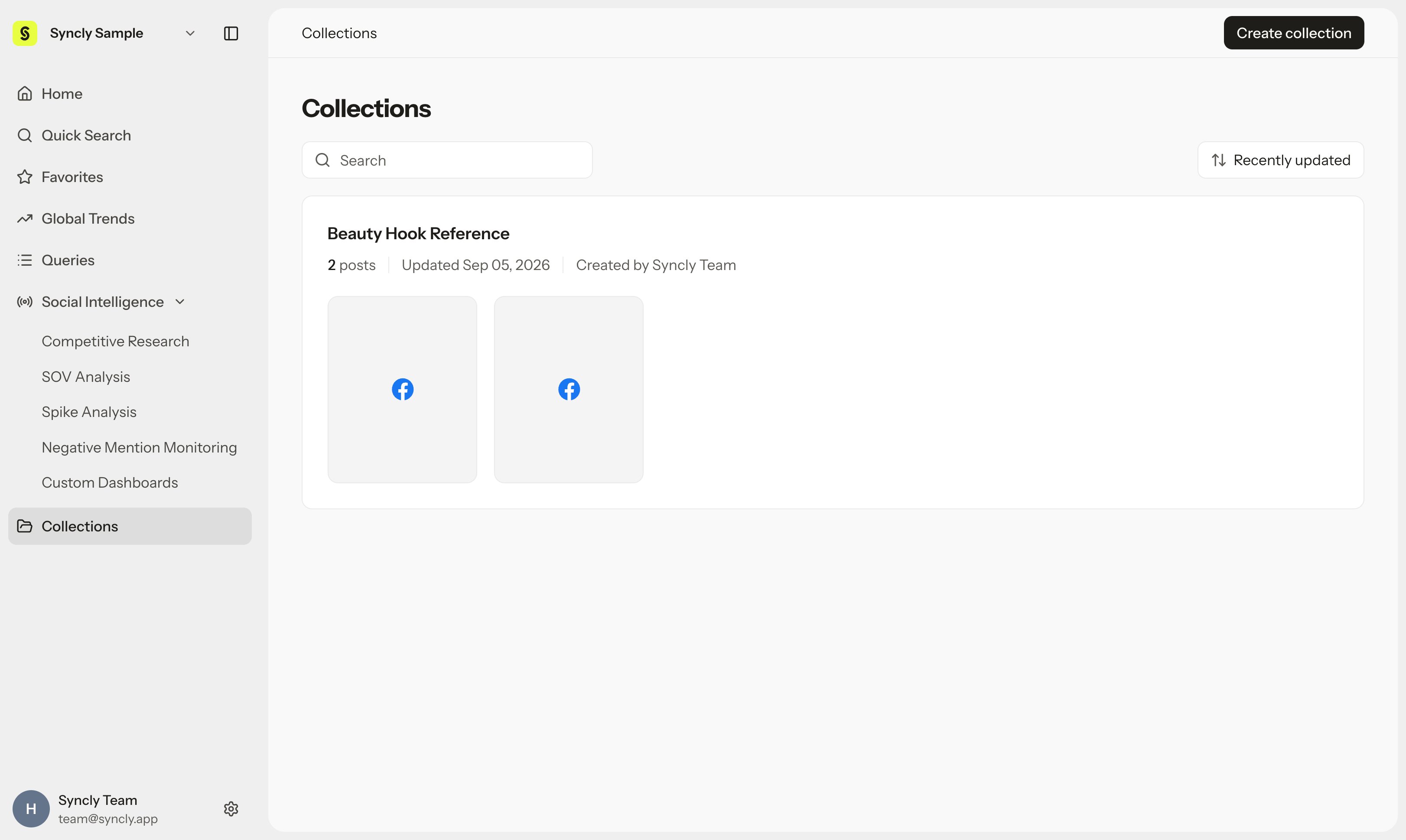
Open a Collection to see its posts and filter them. Select ✨ Hey Syncly to ask questions about the posts in it, or select specific posts first. In post detail, you can also choose which Collections a post is saved in. Collections are shared with everyone in the workspace, so treat them as team folders, not personal ones.Remove posts
Select posts in a Collection and choose Remove from collection. This only removes them from the Collection; the original posts and Query data stay the same.Troubleshoot
- Adding posts fails: Check that you have Editor or Admin permission, that the posts have finished analysis, and that you’re under the limits (20 Collections, 1,000 posts each).
- The name is already taken: Choose a name that isn’t used in this workspace.
- Posts disappeared from a Collection: Posts marked as noise, or from a deleted Query, are removed from Collections too. If they’re restored, add them back yourself.