
Before you start
- Creating a Query requires Editor or Admin permission and enough Query capacity in the workspace.
- Have the keywords or accounts and the platforms you want to track ready.
- To compare Queries you already have, use Query explorer instead of creating a new one.
Create a Query
- In the sidebar, open Manage queries and choose the type to track: Brands, Products, or Topics.
- Open the Query creation screen.
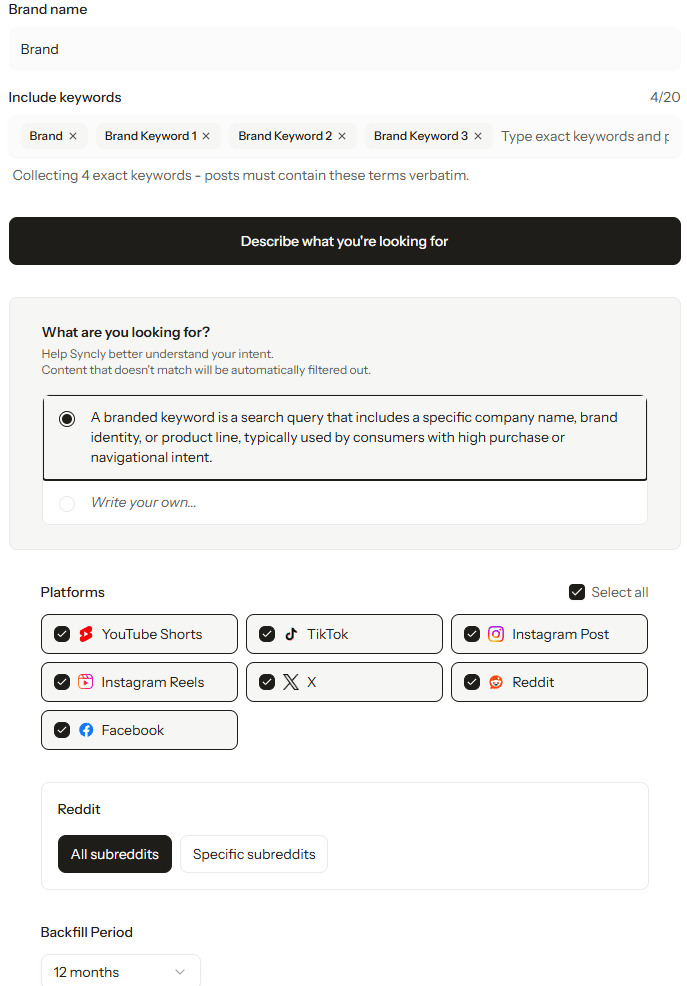
- Enter a name and the subject to analyze.
- Add the keywords, accounts, and platforms to include.
- Check the collection period and anything to exclude.
- Finish creating the Query.
Review suggested analysis criteria
For Brands, Products, and Topics, Syncly suggests analysis criteria based on your subject and keywords. Review the suggestions, choose the ones that fit, and save the Query.Check account inputs
If Syncly asks you to check an account, review the handle format, keywords, and platforms, fix anything needed, and submit again. Use public accounts on supported platforms.Collection period
A period in months includes the current month plus the number of earlier months you choose. Choosing only this month collects from the start of the month to today. How far back you can go depends on when your workspace was created and its backfill limit. Even if you create a Query later, you can still collect back to the earliest month your workspace allows, using that month’s remaining collection quota.To collect data earlier than an existing Query’s range, create a new Query with the longer period.
Confirm it’s working
Check that the new Query appears in the list, then open it. Collection and analysis start right away, and posts appear as they’re ready. YouTube long-form videos and YouTube Shorts are separate sources, so choose the one that fits what you want to track.Troubleshoot
- The create button is disabled: Check the required fields, that you have Editor or Admin permission, and that you have Query capacity left.
- Results haven’t appeared yet: Check the Query’s collection progress, period, and platforms.
- Avoid duplicates: Search Manage queries for an existing Query before creating a new one.