Before you start
Library MCP and Social MCP
Both use the same Syncly server address. The tools you see depend on your Syncly account access. For a manual setup, your client needs to support remote MCP and OAuth sign-in.
Connect
For directory setup, see the guides for Claude and ChatGPT (Codex).- In your AI client, open the settings for adding a remote MCP server or custom connector.
- Name it
Synclyand paste the server URL above. Choose Streamable HTTP and OAuth if your client asks for them. - Sign in to Syncly in your browser, review the requested access, and select Approve.
- Return to your client and start a new chat. Enable the Syncly connector if your client asks you to choose which tools to use.
Using ChatGPT or Claude? Open Syncly Social in the ChatGPT and Codex directory or Syncly Social in Claude and follow the prompts to sign in to Syncly.
Ask your first question
To check Library MCP, try asking for source posts about a topic.Ask about the right workspace
With Social MCP, one connection covers the workspaces your Syncly account can access. Your role in each workspace determines what you can see. To check the connection, try this prompt.Review and disconnect apps
In Syncly, open Settings > My account > Connected Apps to see your connections. If you connect the same tool on more than one device, each one appears separately. Disconnect any you no longer use.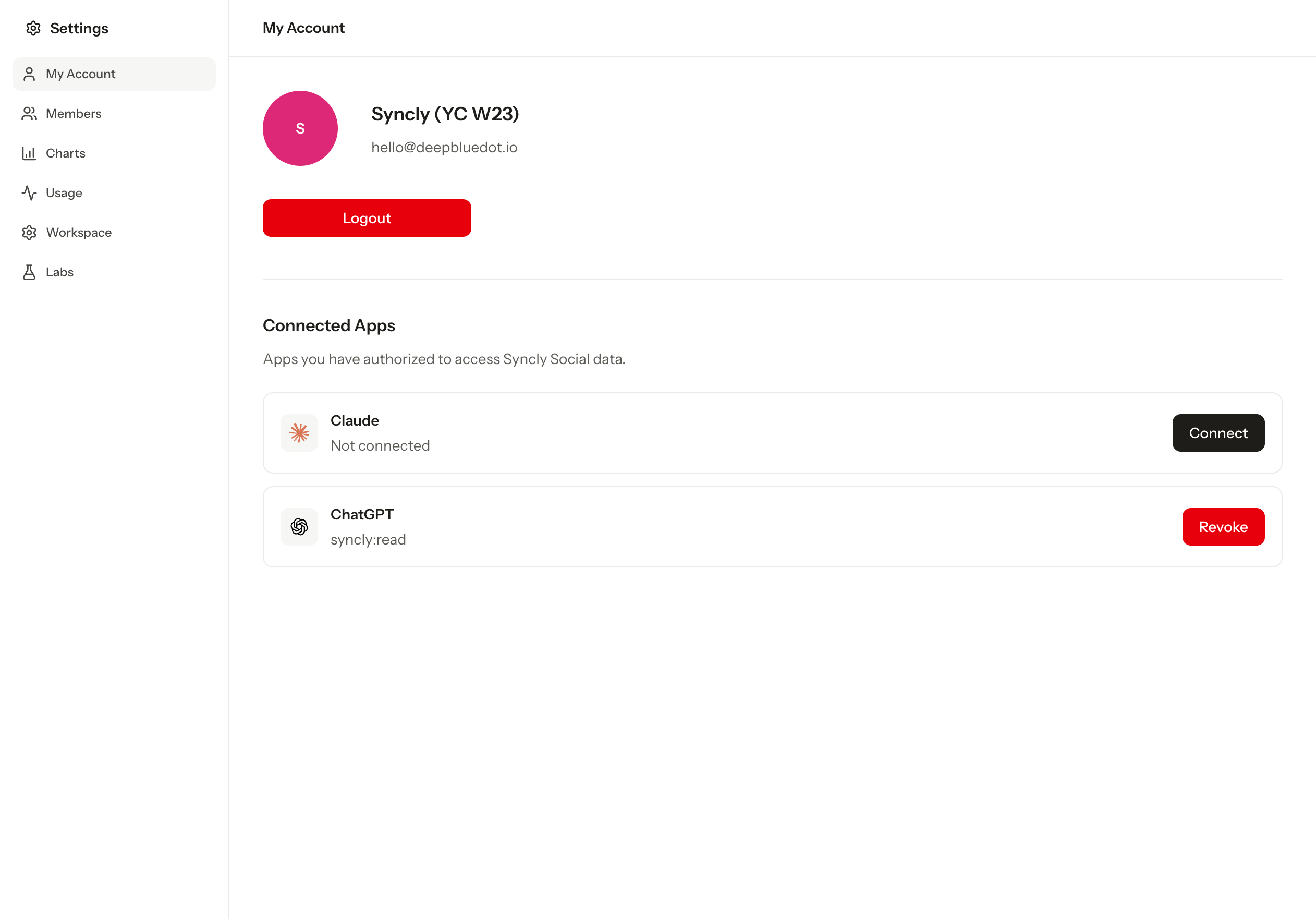
Troubleshoot
- Syncly tools are missing. Check that you’re signed in with the right Syncly account, then look under Connected Apps. Check that your AI client has enabled the connection for this chat.
- Social MCP shows the wrong workspace. Check your Syncly account and name the workspace in your question.
- A connection stopped working. Check whether it was disconnected or replaced after you reached the 10-connection limit. If needed, reconnect with the server address above.